How to Create AI Ghibli Art From Your Own Photos
Learn how to create AI Ghibli art step by step, from choosing the right photo to picking a style, with tips for the best hand-painted anime results.
 Ghibli Style Team6 min read
On this page
If you've seen those dreamy, hand-painted anime portraits floating around social media and wondered how people turn an everyday photo into something that looks like it belongs in a storybook, you're in the right place. "Ghibli-inspired" art has become shorthand for a specific look: soft lighting, warm colors, gentle linework, and a storybook mood. The good news is you don't need to learn to paint or master a complex app to get this look from your own pictures. This guide walks through exactly how to do it, what makes a photo work well, and how to pick the right style for your goal.
What "AI Ghibli Art" Actually Means
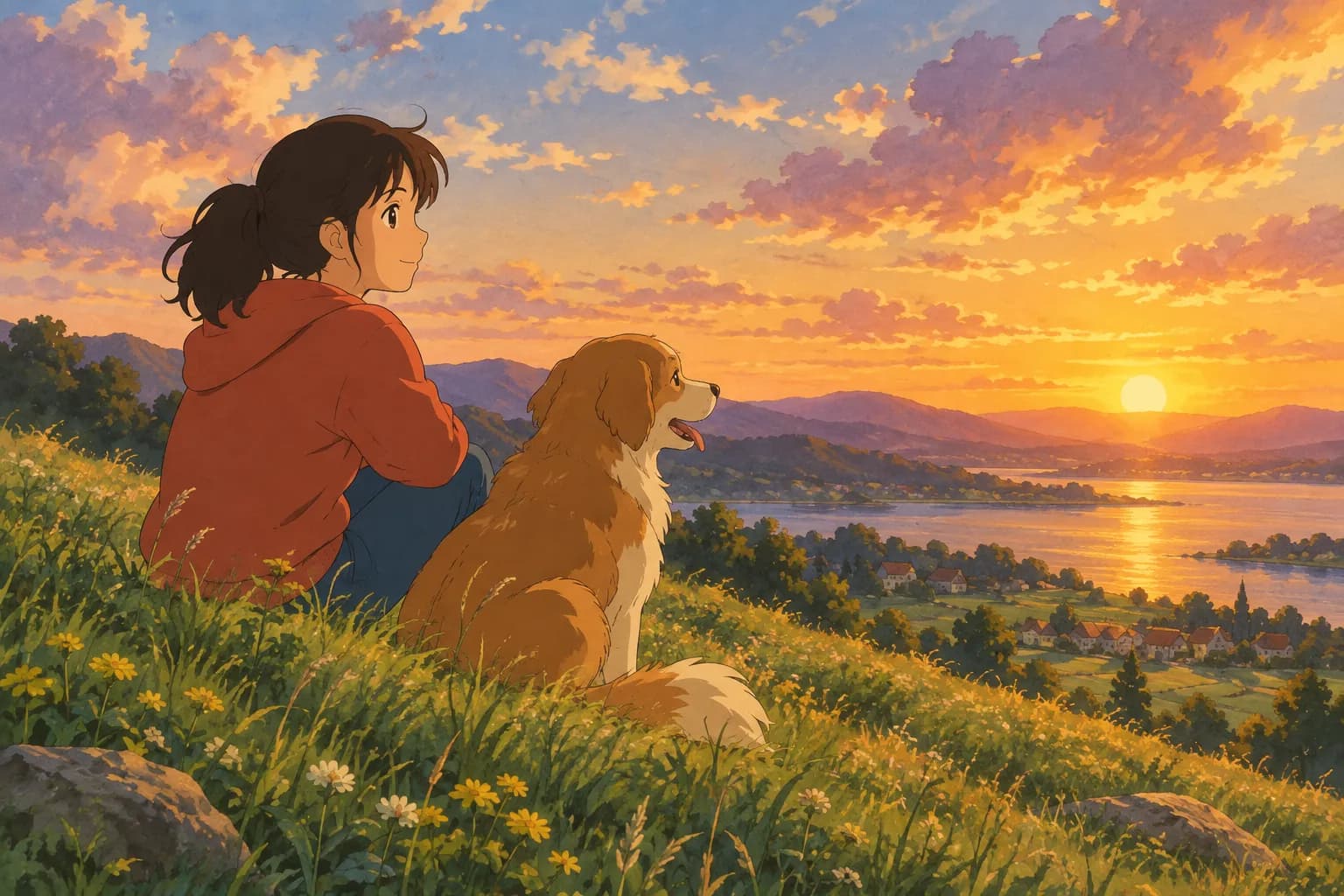
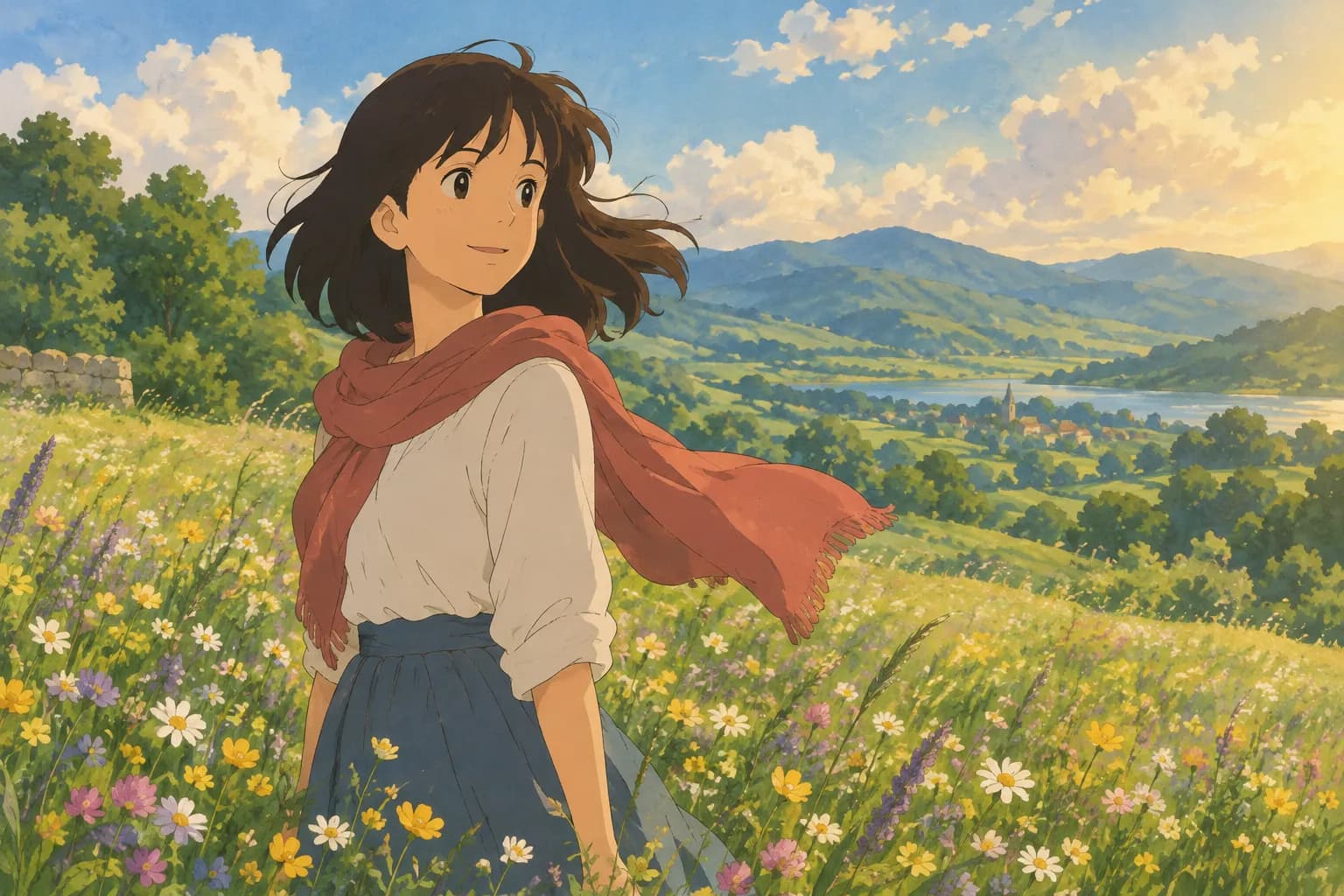
"Ghibli-inspired" refers to a hand-painted anime film aesthetic: soft watercolor-like skies, warm natural light, expressive but simple faces, and a cozy, nostalgic feeling. AI tools can study the visual patterns of that style and reinterpret your photo using those same qualities, without copying any specific film or character. This site, Ghibli Style, is an independent AI photo-to-art tool and is not affiliated with Studio Ghibli, but it offers a hand-painted Ghibli-inspired style as one of 42 options across cartoon & anime, art & painting, sketch, digital, 3D & toys, and photo & portrait categories.
Step 1: Pick a Photo That Has Good "Bones"
The quality of your source photo matters more than any setting inside the tool. A few things to look for:
- Clear face and good lighting. Natural daylight or soft indoor light works best. Avoid harsh shadows across half the face or strong backlighting that hides features.
- Medium-close framing. Head-and-shoulders or half-body shots translate better than tiny, far-away figures in a crowd.
- Minimal clutter. Busy backgrounds can confuse the AI's sense of what to stylize. A simple background, even an ordinary wall or yard, gives cleaner results.
- Sharp focus. Blurry or very low-resolution photos tend to produce muddier results, since the AI has less detail to work with.
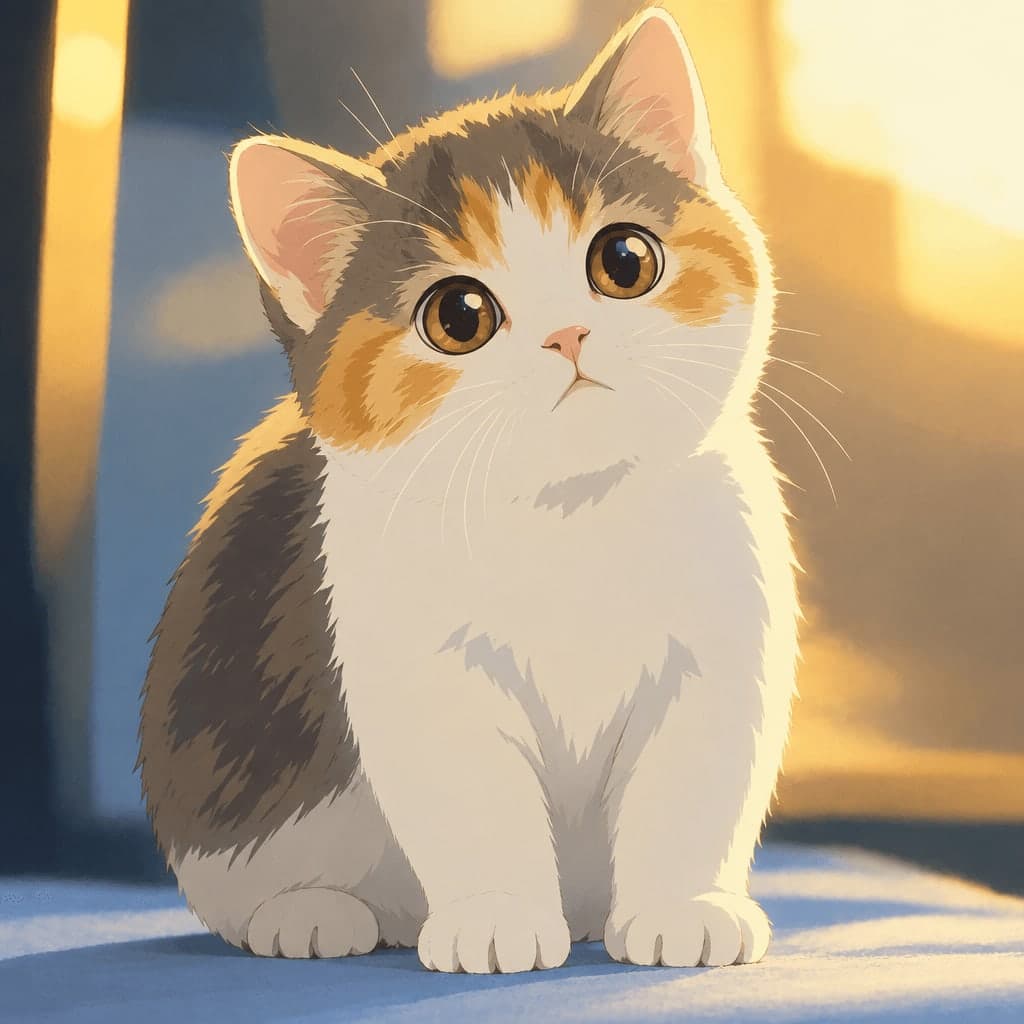
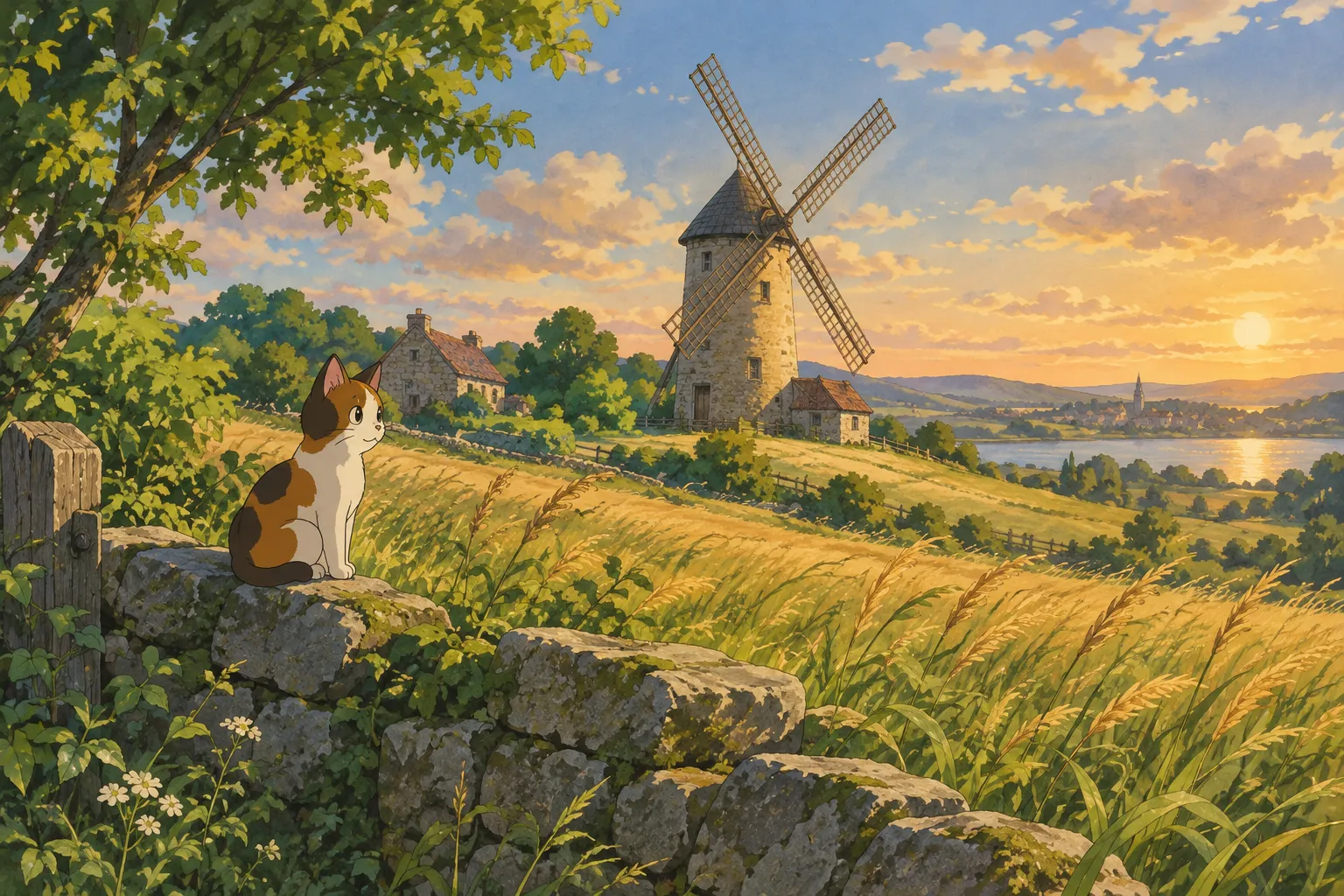
- Pets work too. A clear, well-lit photo of a cat or dog with its face visible often turns into one of the most charming results, since fur and expressive eyes render beautifully in this style.
Step 2: Choose Your Style
Once you have a photo, the next decision is which style best fits your goal:
- For the classic storybook look, the home page generator uses the signature soft, hand-painted Ghibli-inspired style by default. This is the fastest path if you just want that warm, nostalgic portrait.
- If you want wallpaper-ready art for your phone or desktop, try the Ghibli-style wallpaper tool, which can format your image as a 9:16 or 16:9 wallpaper.
- Want a crisper, more modern anime look instead of the painterly one? Photo to Anime uses cel shading and cleaner lines.
- Curious what else is possible? Browse the full styles overview to compare all 42 options side by side, including sketch, oil painting, chibi, and 3D figurine looks.
Step 3: Generate and Review
Upload your photo, select the style, and the image is typically ready in about 20 to 30 seconds. Because the process is quick, it's worth generating more than one version if you have multiple credits to spare, since small differences in cropping or lighting can change the outcome. If a generation fails for any reason, it won't use up a credit, so you can safely try again.
Step 4: Download and Save
Standard downloads are free, and HD downloads use credits if you want the highest resolution for printing or framing. On a phone, the finished image can be saved straight to your camera roll. All your generations are also kept privately on a "My Works" page, so you can come back to them later without redoing the upload.
Before and After Examples
Seeing the transformation helps set expectations. Here's a portrait and a pet photo run through the Ghibli-inspired style:
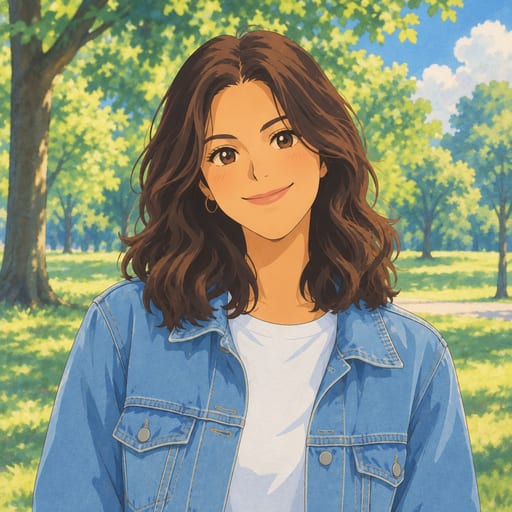
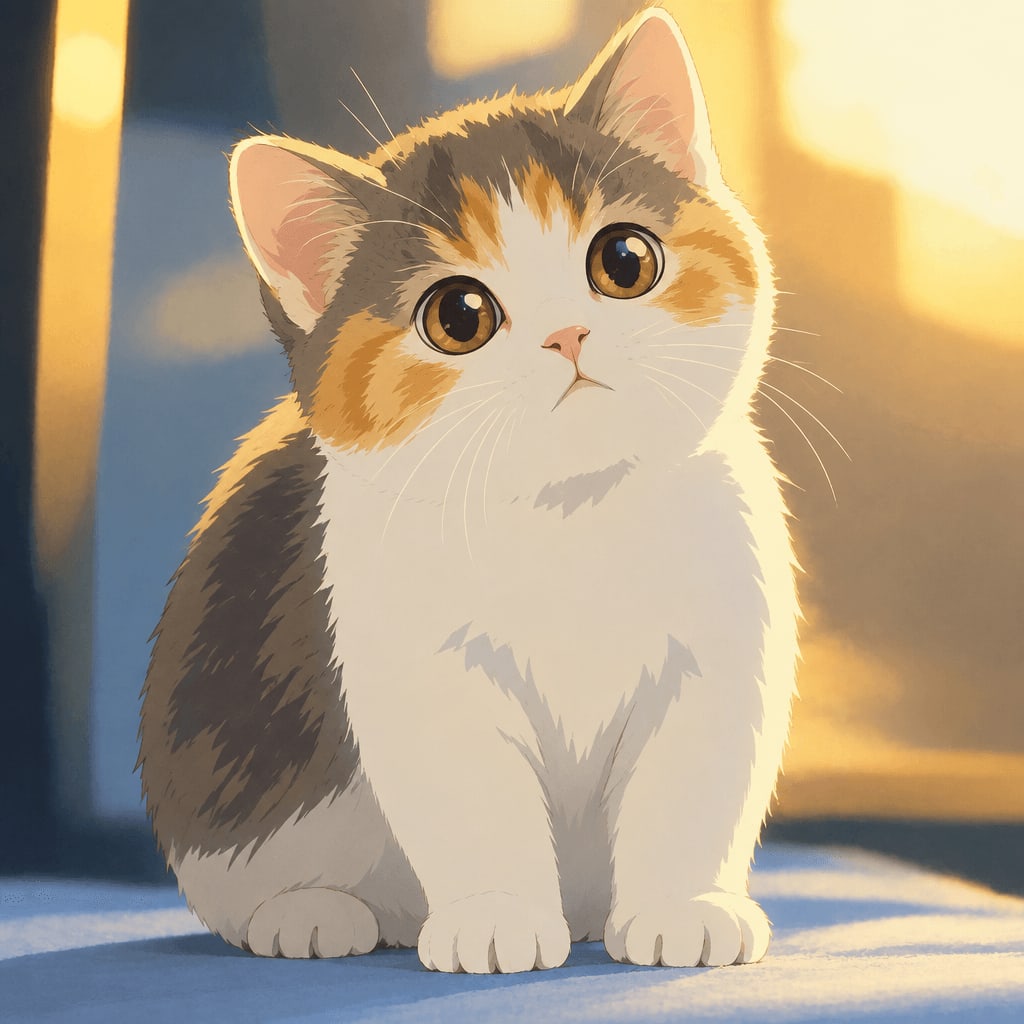
Notice how the overall likeness, pose, and expression are preserved, while the color palette softens and the linework takes on that gentle, painted quality.
Tips for Better Results
Use natural light over flash. Golden hour or soft window light gives skin tones and fur more depth than direct flash, which can flatten details the AI relies on.
Try different crops. A tighter crop on the face often produces a more expressive result, while a wider shot captures more of the scene and clothing, which can add charm to the final art.
Match the style to the use case. A dreamy Ghibli-inspired portrait is lovely for a keepsake or wallpaper, but if you need something for a professional profile, consider the AI headshot generator instead, which turns a casual selfie into business-appropriate attire on a studio backdrop.
Experiment beyond portraits. Couples, friends, and family photos can all work, not just solo shots. A photo of two people sitting together, for example, can carry the same warm lighting and soft color treatment as a solo portrait.
Save your favorites promptly. Free accounts keep generated images in "My Works" for 30 days, extending to 90 days after buying credits and a full year for subscribers, so plan to download anything you want to keep long-term.
Choosing a Plan
New accounts get 1 free image to test the style before committing to anything. After that, there are a few one-time and subscription options: 10 images for $4.99 or 40 images for $14.99, both as one-time purchases with credits lasting 12 months, or a subscription at 30 images per month for $9.99 or 150 images per month for $29.90, cancel anytime. Check the pricing page for current details and pick whichever matches how often you plan to create art.
FAQ
Do I need design skills to make AI Ghibli art? No. The process is upload a photo, choose a style, and wait roughly 20 to 30 seconds for the result. No editing software or artistic background is required.
Can I use a photo of my pet instead of a person? Yes. Clear, well-lit photos of cats, dogs, and other pets often produce charming results, especially when the face and eyes are clearly visible.
What if I don't like the result? You can try again with a different photo, crop, or style. A failed generation never uses a credit, so experimenting costs you nothing extra beyond the time it takes.
Is this the same as Studio Ghibli's actual art style? This tool creates art "in a hand-painted anime film style" inspired by that general aesthetic. It is an independent tool, not affiliated with or endorsed by Studio Ghibli, and it does not reproduce any specific characters or copyrighted artwork.
Ready to see your own photo in this style? Head to the home page to upload a picture and try the default hand-painted Ghibli-inspired look for yourself.
Try the Ghibli style generator on your own photo.
Try it free