Ghibli Face: How to Get the Dreamy Anime Look in a Photo
What makes a "Ghibli face" and how to turn your own photo into that soft, hand-painted anime look in under a minute.
 Ghibli Style Team5 min read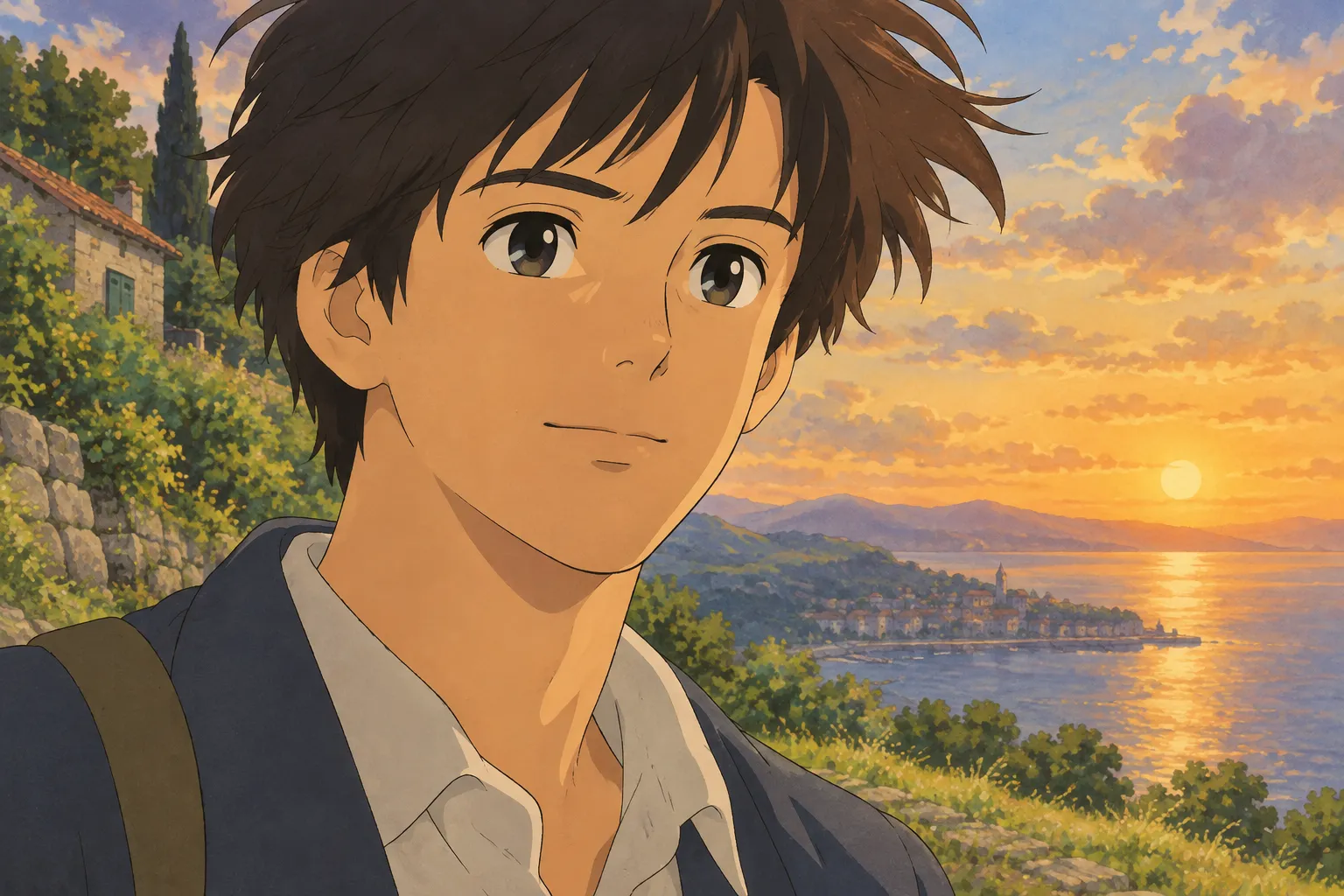
On this page
What People Mean by "Ghibli Face"
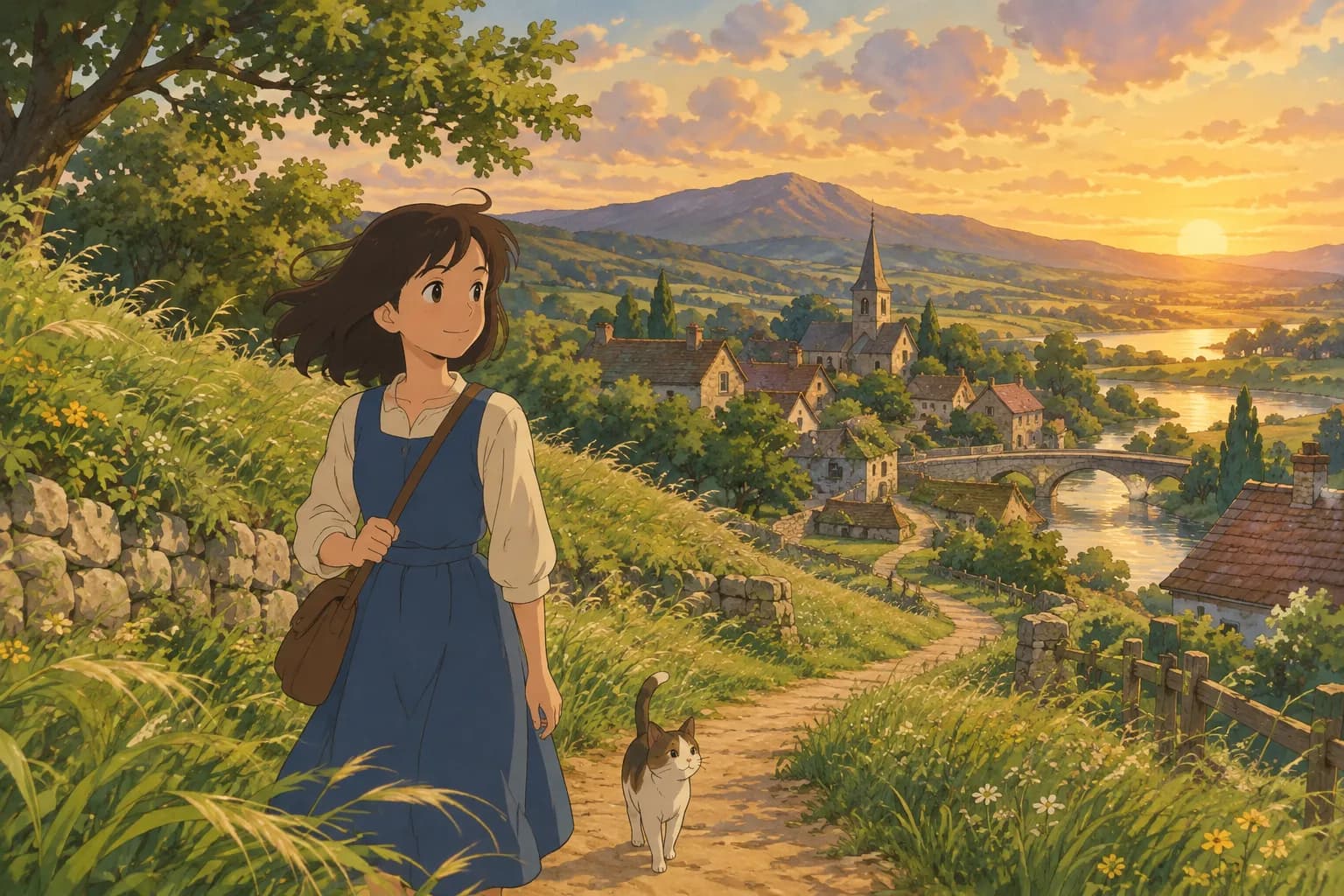
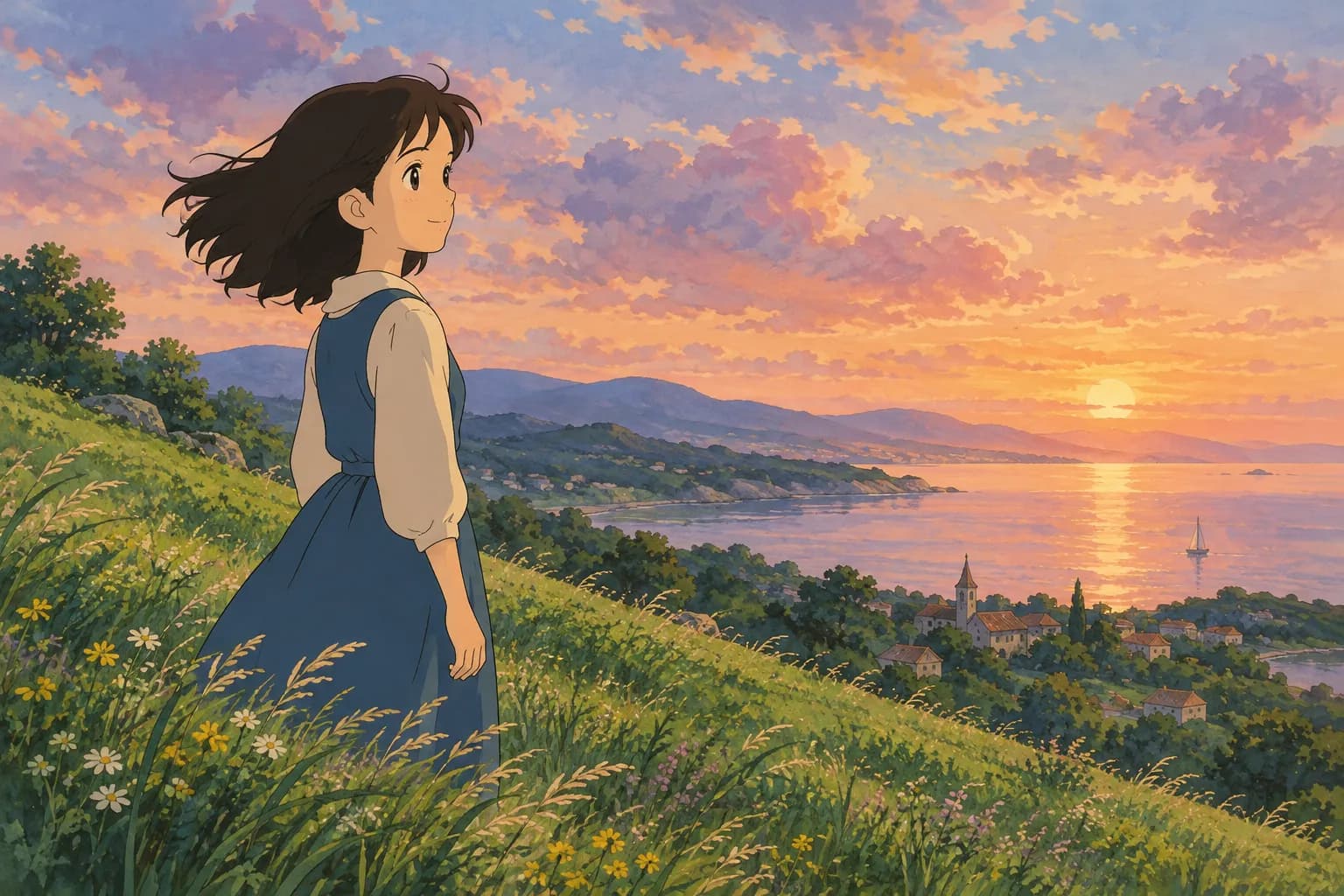
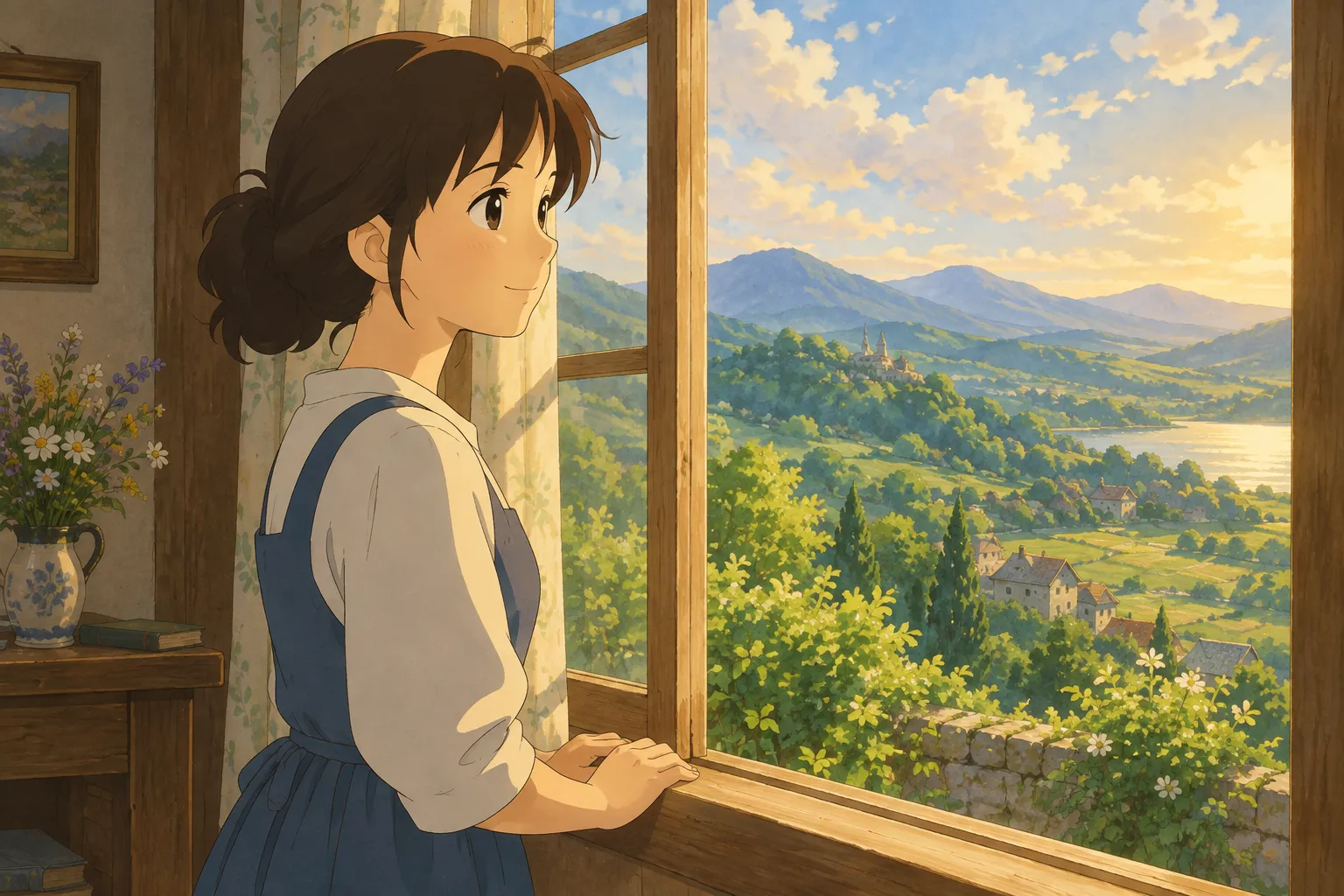
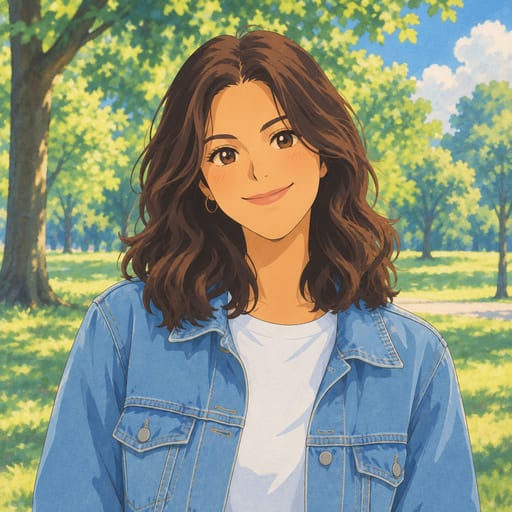
If you've spent any time scrolling through anime art or AI-generated portraits, you've probably seen the term "Ghibli face" or "Studio Ghibli face" used to describe a very specific look: big, soft eyes with a gentle glint of light, a rounded nose drawn with just a line or two, a small simple mouth, warm skin tones, and hair that moves like it's caught in a breeze. It's the hand-painted anime film style that generations of animators have been inspired by — soft lighting, watercolor-like backgrounds, and characters that feel both expressive and calm.
A lot of people search "ghibli face" because they want to know two things: what actually makes a face look that way, and how they can turn their own photo (or their pet's photo) into that style without learning to draw or paint. This post covers both.
The Key Features of a "Ghibli Face"
If you look closely at the hand-painted anime style that inspired this trend, a few features show up again and again:
- Large, soft eyes with a simple highlight dot and gentle shading instead of sharp anime "sparkle" effects
- Minimal line work — eyebrows, noses, and mouths are often drawn with just a stroke or two, keeping the face uncluttered
- Warm, natural skin tones rather than stark white or heavily airbrushed skin
- Soft, painterly shading instead of hard cel-shaded edges
- Hair with movement, often slightly tousled, painted with visible brush texture
- A gentle, calm expression — even in action scenes, the faces tend to look thoughtful rather than exaggerated
This is different from more modern anime styles, which usually have sharper linework, bigger "sparkle" eyes, and crisp cel shading. If you're curious about that more polished anime look instead, our photo-to-anime style page shows the difference side by side.
How to Turn Your Photo Into a Ghibli Face
The good news is you don't need any drawing skill to get this look from your own picture. Ghibli Style is a simple AI photo-to-art tool built for exactly this: upload a photo of a person or a pet, pick a style, and get a hand-painted result in about 20-30 seconds. The home page's default style is our signature soft, hand-painted Ghibli-inspired look — the one most people picture when they search "ghibli face."
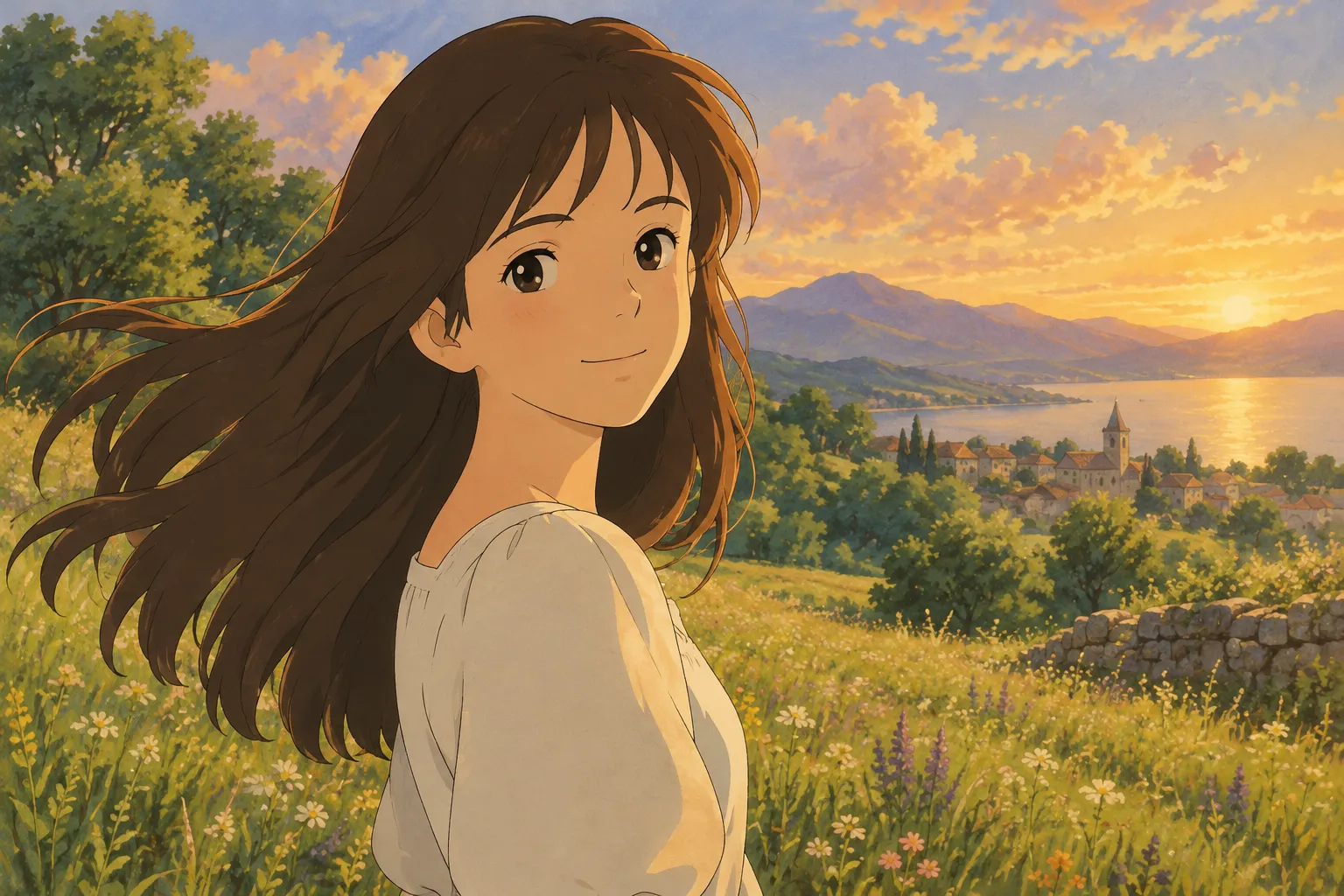
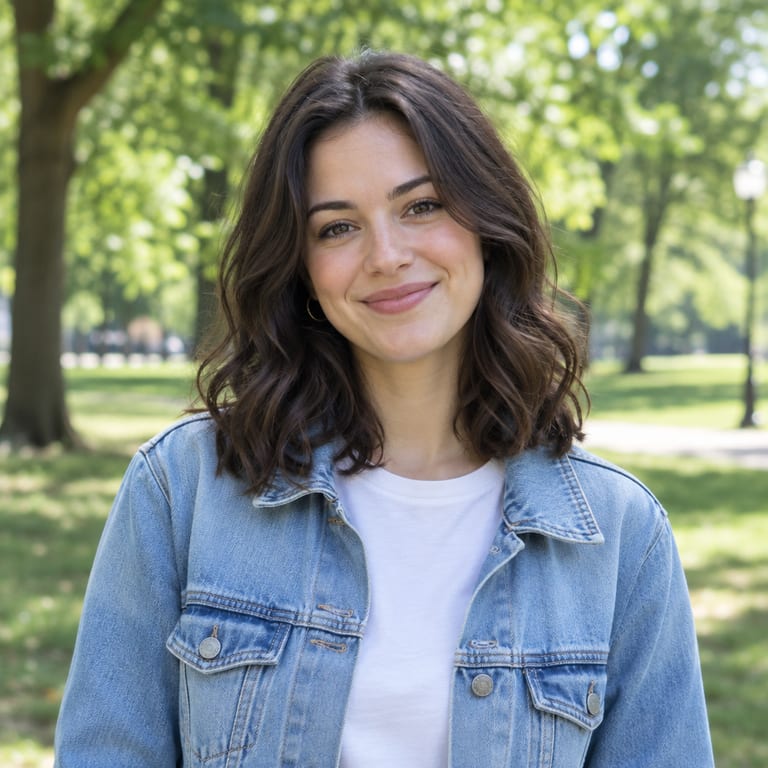
Here's a simple before-and-after so you can see what the transformation looks like in practice:
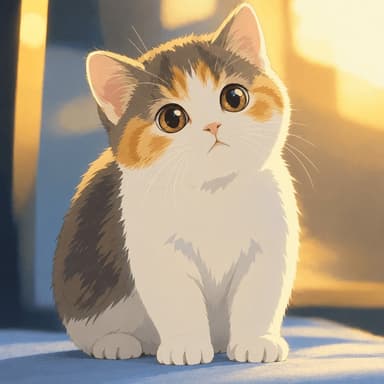
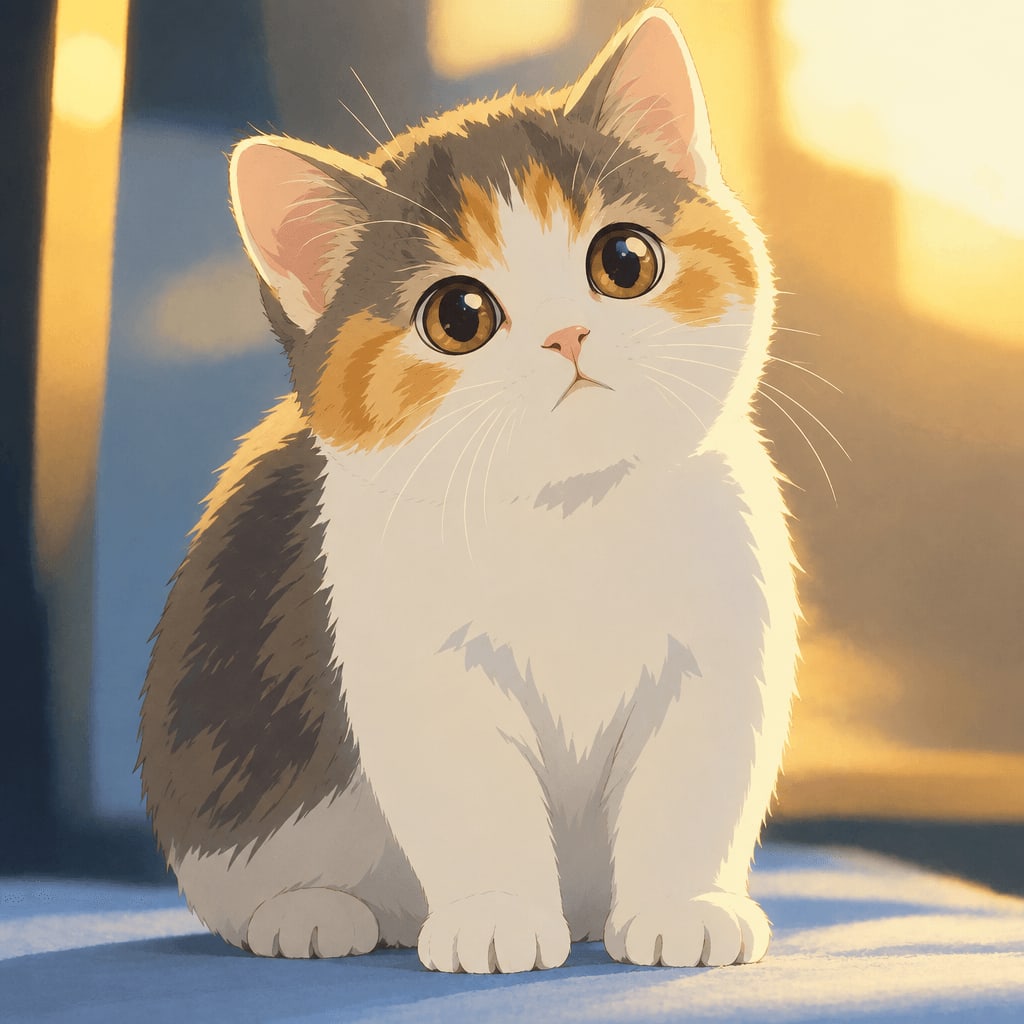
And it isn't limited to people — pets translate beautifully into this style too, since the same soft eyes and gentle shading work wonderfully on animal faces.
Tips for the Best "Ghibli Face" Result
The source photo you choose makes a real difference in how the final art turns out. A few things to keep in mind:
- Use a clear, front-facing or three-quarter photo. The AI needs to see your facial features to translate them well — avoid photos where your face is mostly in shadow or turned far to the side.
- Good, even lighting beats dramatic lighting. Soft daylight near a window or an overcast day outdoors gives the most flattering, true-to-you results. Hard shadows from direct sun can confuse the shading.
- Keep the background simple if you can. A plain wall, sky, or blurred background helps the AI focus on your face rather than filling the scene with clutter.
- Higher resolution photos work better. A clear phone photo is usually fine — just avoid heavily compressed or blurry images.
- Smile naturally or keep a relaxed expression. The style tends to look its best with warm, gentle expressions rather than big exaggerated ones.
- For pets, get them looking roughly at the camera. A clear shot of your dog or cat's face, rather than a side profile mid-motion, gives the cleanest result.
Other Styles Worth Trying
Once you've made your Ghibli face portrait, it's worth exploring a few related looks while you're at it. The AI tool has 42 styles across 6 categories, so you can compare a few before settling on your favorite:
- Anime PFP Maker — turns a selfie into a square anime profile picture, Ghibli-inspired by default, perfect for social media avatars
- Ghibli Wallpaper — turns your photo into a 9:16 or 16:9 wallpaper in the same hand-painted style, ready for your phone or desktop
- Chibi Maker — a cute, big-head illustration if you want something playful rather than cinematic
- Watercolor Portrait — if you like the soft, painterly feel but want a more classic fine-art look
You can see the full lineup on the styles overview page if you want to compare options before choosing.
Frequently Asked Questions
Is "Ghibli face" an official Studio Ghibli term? No. It's a popular nickname people use online to describe the soft, hand-painted anime art style that inspired a lot of fan art and AI-generated portraits. Ghibli Style is an independent tool and isn't affiliated with Studio Ghibli.
What kind of photo works best for this effect? A clear, well-lit photo where your face or your pet's face is visible and in focus works best. Front-facing or three-quarter angles with soft, even lighting give the most natural-looking results.
Do I need to pay to try it? New accounts get 1 free image to try the tool. After that, credits are available starting at 10 images for $4.99, with monthly subscription options too if you plan to make a lot of art — you can see all the options on the pricing page.
Can I use this on pets, not just people? Yes. Upload a clear photo of your dog, cat, or other pet and pick the same hand-painted style — the soft eyes and gentle shading work just as well on animal faces as human ones.
Try It Yourself
If you've been wanting to see your own face — or your dog's — in that soft, dreamy, hand-painted style, it only takes a photo and about 20-30 seconds. Head to the home page to upload your picture and try the default Ghibli-inspired style for free.
Try the Ghibli style generator on your own photo.
Try it free