Convert Image to Ghibli-Style Prompt: A Simple Guide
Learn how to write a great "convert image to Ghibli-style" prompt, plus an easy no-prompt option that turns any photo into hand-painted art in seconds.
 Ghibli Style Team6 min read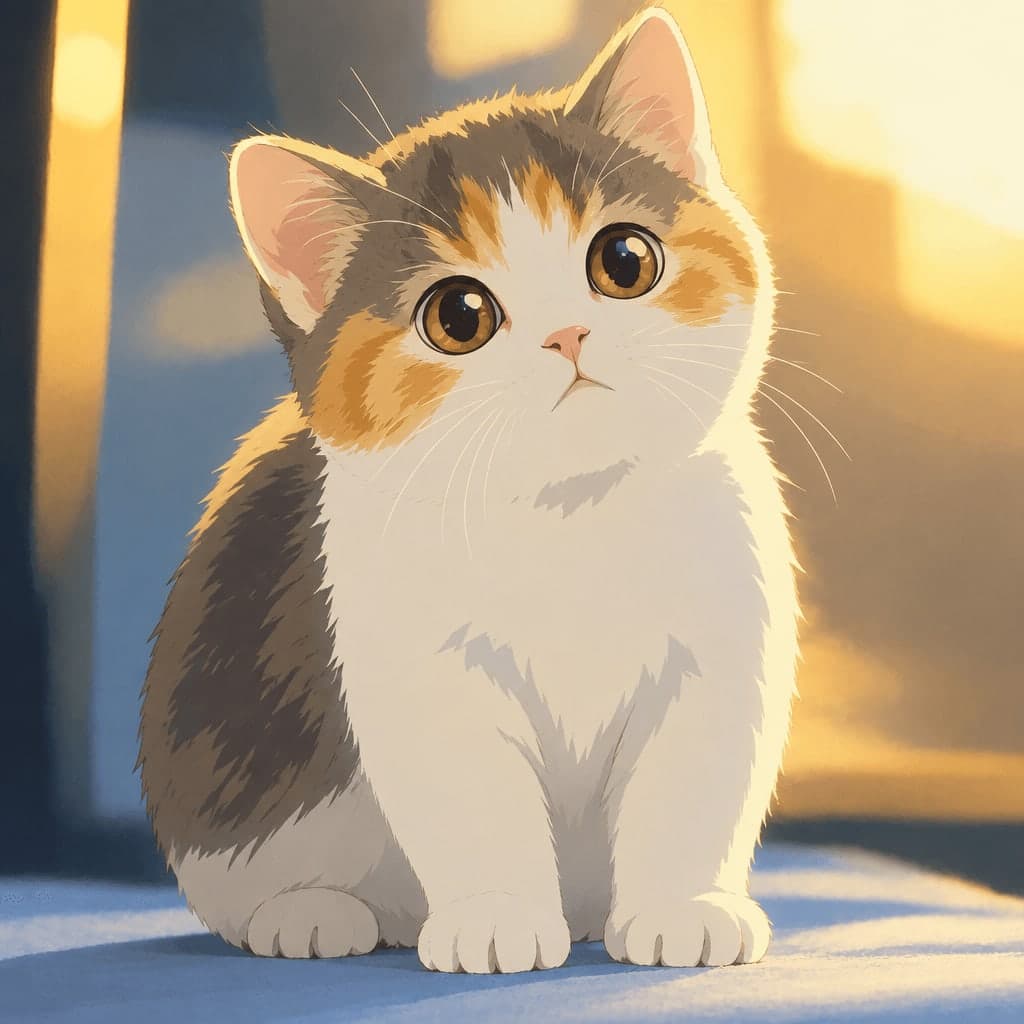
On this page
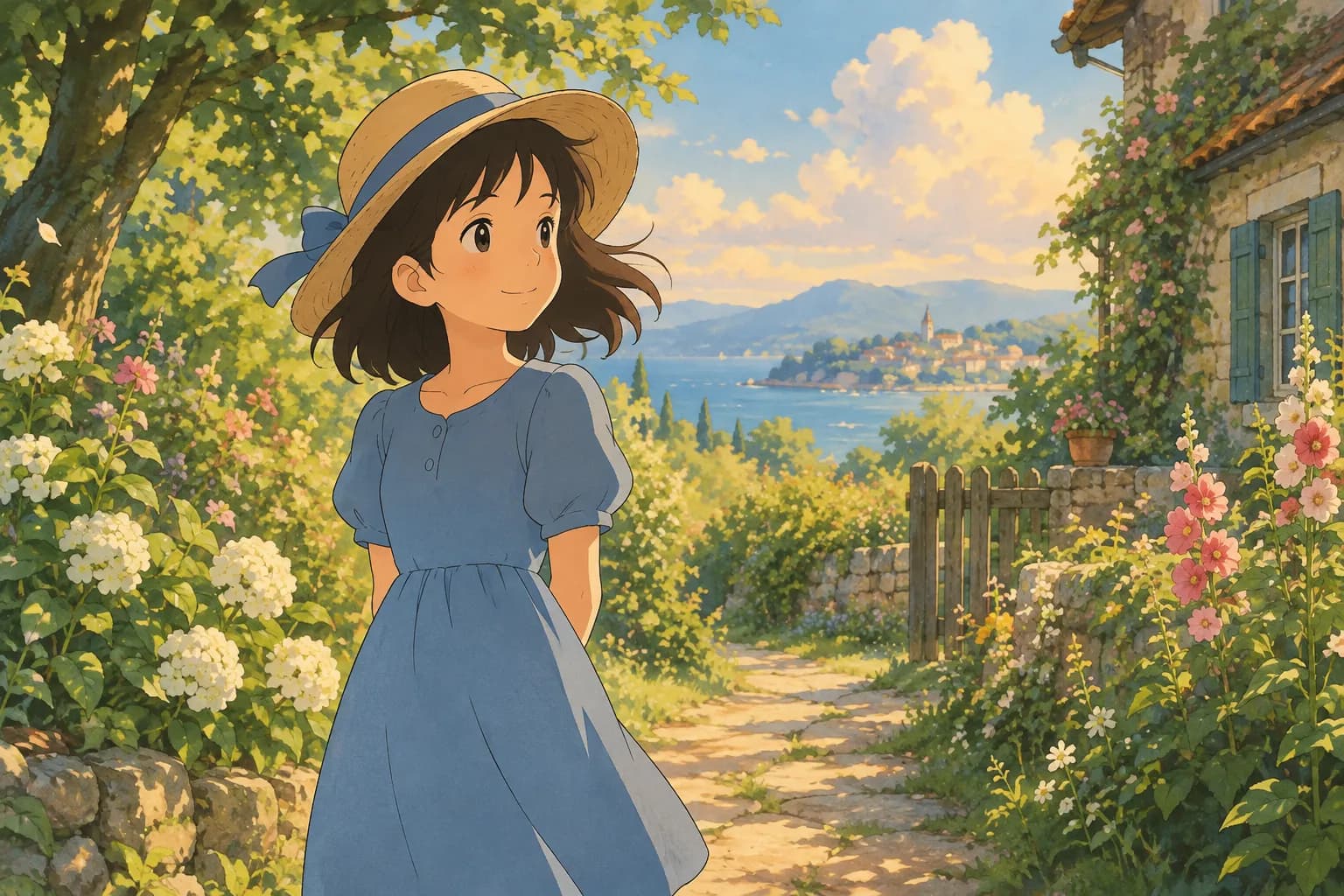
If you've been searching for how to "convert image to Ghibli-style prompt," you're probably trying to turn a regular photo into that warm, hand-painted anime look — soft lighting, gentle colors, and a storybook feel. There are two ways to get there: writing a detailed text prompt for an AI image generator, or using a dedicated photo-to-art tool that skips the prompt-writing entirely. This guide covers both, so you can pick whichever fits your workflow.
What Makes a Prompt "Ghibli-Style"
Before typing anything into an AI generator, it helps to know what actually creates that hand-painted anime film style. It's not just "anime" — it's a specific combination of:
- Soft, painterly brushwork instead of crisp digital lines
- Warm, natural lighting like golden-hour sun or soft overcast skies
- Lush backgrounds — greenery, clouds, or cozy interiors with visible texture
- Rounded, gentle facial features rather than sharp anime cel-shading
- A nostalgic, storybook color palette (muted greens, warm creams, soft blues)
A strong prompt describes these elements clearly instead of relying on a single style word, since general AI image generators need explicit guidance to nail the look.
Example Prompt Structure
Here's a prompt template you can adapt for your own photo:
"A hand-painted anime film illustration of [subject description], in a soft watercolor and gouache style, warm natural lighting, gentle rounded features, lush painterly background with visible brushstrokes, nostalgic storybook color palette, high detail, cinematic composition."
For example, if you're converting a portrait of a woman standing outdoors:
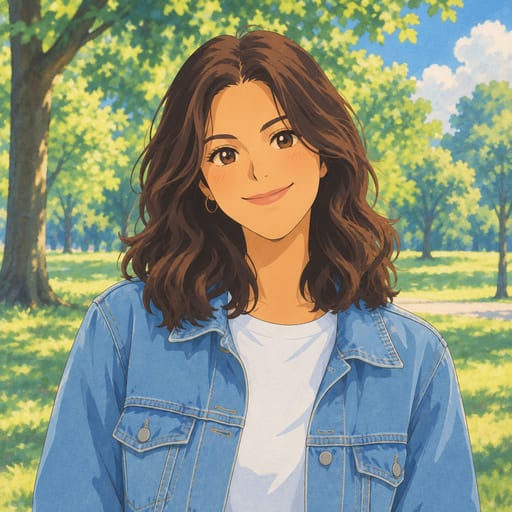
"A hand-painted anime film illustration of a young woman with shoulder-length hair standing in a sunlit meadow, in a soft watercolor and gouache style, warm golden-hour lighting, gentle rounded features, lush green background with visible brushstrokes, nostalgic storybook color palette, high detail, cinematic composition."
Swap in details about your subject's pose, clothing, and setting, and keep the style descriptors (soft brushwork, warm light, painterly background) consistent — those are the words doing the heavy lifting.
Tips for Better Results
- Describe the subject specifically. Hair color, clothing, pose, and background all help the AI understand what to preserve from your photo.
- Mention lighting explicitly. "Warm afternoon light" or "soft diffused daylight" pushes the output toward that cozy feel.
- Avoid naming specific franchises or characters. Focus on describing the artistic technique (hand-painted, watercolor, gouache) rather than referencing copyrighted properties.
- Iterate. If the first result looks too sharp or digital, add phrases like "soft edges" or "traditional animation cel" to soften it further.
Why Some People Skip the Prompt Entirely
Writing prompts works, but it takes trial and error — you generate an image, look at what's off, tweak the wording, and try again. If your goal is simply to see your photo turned into this style without the back-and-forth, an image-to-image tool is faster because it uses your actual photo as the reference instead of a text description.
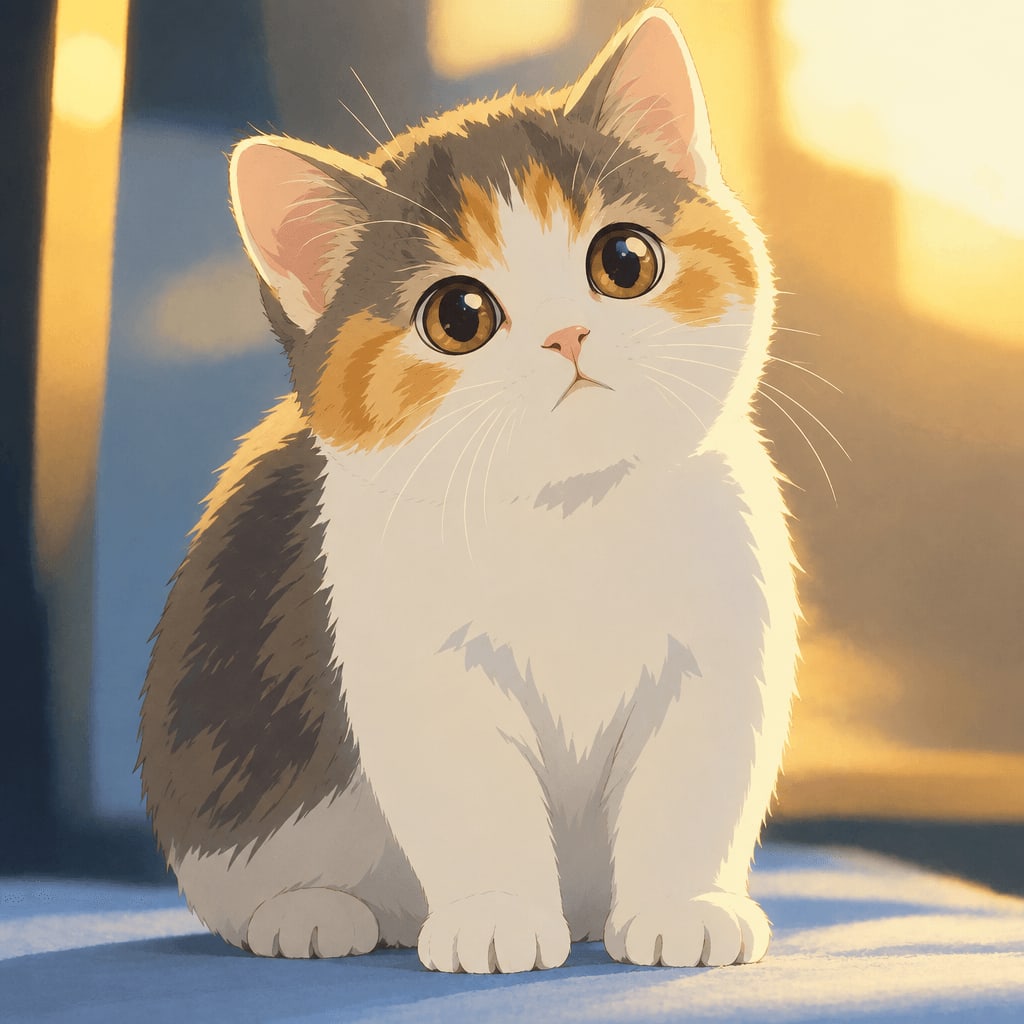
That's the idea behind Ghibli Style, a straightforward AI photo-to-art tool. Instead of describing your subject in words, you upload the real photo — of a person or a pet — and the tool keeps the likeness while repainting it in the hand-painted, soft anime film style. No prompt engineering required.
How It Works
- Upload a clear photo of a person or pet.
- Choose the signature soft, hand-painted style (the site's default look), or explore other options.
- Get your result in about 20–30 seconds.
New accounts get one free image to try it out, and a failed generation never uses up a credit, so there's no risk in testing it on your own photo.
Which Photos Work Best
Whether you're prompting an AI generator or using an image-to-image tool, the source photo matters a lot. Keep these tips in mind:
- Good lighting. Natural daylight or soft indoor light produces cleaner results than harsh shadows or backlighting.
- Clear framing. A photo where the face (or your pet's face) is clearly visible and not cropped off works better than a distant or blurry shot.
- Simple backgrounds. Busy backgrounds can confuse the style transfer; a plain or softly blurred background lets the subject stand out.
- One main subject. Photos with a single clear person or pet convert more reliably than group shots with many faces.
Beyond the Classic Ghibli Look
If you like the idea of stylizing your photos but want to try something different for certain uses, there are other styles worth exploring alongside the hand-painted look:
- Photo to anime — a crisper, modern TV/film anime look with cel shading, if you want something bolder than the soft painterly style.
- Chibi maker — turns your photo into a cute, big-head chibi illustration, fun for stickers or profile pictures.
- 3D figurine — renders your subject as a realistic collectible figure on a display base.
- AI action figure generator — packages your photo as a boxed action-figure toy, complete with accessories.
You can browse the full lineup on the styles page to see all 38 options across cartoon & anime, art & painting, sketch, digital, and 3D & toy categories.
Saving and Using Your Results
Once you have your stylized image, standard downloads are free, and HD downloads use credits if you want a higher-resolution file for printing. On mobile, you can save the image straight to your phone's Photos app. All your generations are also kept in your private "My Works" page for later — free accounts keep them for 30 days, and that extends to 90 days after buying credits or up to a year for subscribers.
If you end up wanting more than the one free image, credit packs start at 10 images for $4.99, or you can check the pricing page for subscription options if you plan to convert photos regularly.
FAQ
Do I need to know how to write AI prompts to get a Ghibli-style photo? No. Writing a detailed prompt works with general AI image generators, but if you already have a photo you want to transform, an image-to-image tool like Ghibli Style lets you upload the photo directly and skip prompt-writing altogether.
Can I convert a photo of my pet, not just a person? Yes. Pet photos work well for this style, especially with clear lighting and a visible face — the same tips for portraits apply.
Will the result look exactly like my photo? The tool aims to keep your subject's likeness — face shape, hair, expression — while repainting the image in the hand-painted style. It's a stylized reinterpretation, not a filter overlay, so some artistic changes are expected.
What if my generation doesn't turn out well? A failed generation never uses a credit, so you can try again with a different photo or style without extra cost.
Final Thoughts
Whether you write a detailed prompt for an AI generator or use an image-to-image tool that starts from your actual photo, the key to a convincing Ghibli-inspired look is the same: warm lighting, soft painterly texture, and a nostalgic color palette. If you'd rather skip the prompt-writing and see your own photo transformed in under a minute, give the home page generator a try with your first free image.
Try the Ghibli style generator on your own photo.
Try it free